Which Java version for your Minecraft server?
23 September 2026 · updated on 07 October 2026 · 3 min read
The server refuses to start, the console shows a stack of errors, and the word "Java" only appears in the middle of a two-hundred-character line. In half the cases, it's neither Paper nor a plugin: it's the Java version that doesn't match the game version.
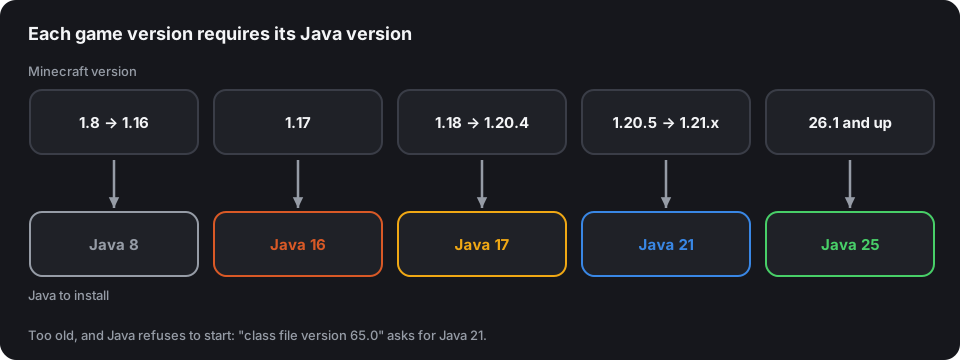
The mapping table
| Minecraft version | Java to install |
|---|---|
| 1.8 to 1.16.5 | Java 8 (Java 11 also works for 1.16) |
| 1.17 and 1.17.1 | Java 16 or newer |
| 1.18 to 1.20.4 | Java 17 |
| 1.20.5 to 1.21.x | Java 21 |
| 26.1 and later | Java 25 |
Mojang dropped "1.x" numbering in 2026: after the last 1.21, versions carry the year's number (26.1, 26.2…). Nothing else changes for you, apart from the Java version.
The general rule: a Java version that's too old won't start; a version that's too new often starts, but not always with old servers and old mods. Install exactly the one in the table.
Recognise the version error
The message looks like this:
java.lang.UnsupportedClassVersionError: io/papermc/paperclip/Main has been compiled
by a more recent version of the Java Runtime (class file version 65.0), this version
of the Java Runtime only recognizes class file versions up to 61.0
The two numbers are enough to understand everything: the first is the version required, the second the one installed.
| "class file version" | Java version |
|---|---|
| 52 | Java 8 |
| 55 | Java 11 |
| 60 | Java 16 |
| 61 | Java 17 |
| 65 | Java 21 |
| 69 | Java 25 |
Here: 65 required, 61 installed. Java 21 is needed, and the machine has Java 17.
Check the installed version
java -version
The first line gives the version: openjdk version "21.0.4" means Java 21. If the command isn't found, Java isn't installed, or isn't in the PATH.
Install Java on Debian and Ubuntu
The official repositories don't always have the version you need. The Adoptium repository (Eclipse Temurin), free and maintained, has them all:
sudo apt install -y wget gpg apt-transport-https
wget -qO - https://packages.adoptium.net/artifactory/api/gpg/key/public | gpg --dearmor | sudo tee /etc/apt/trusted.gpg.d/adoptium.gpg > /dev/null
echo "deb https://packages.adoptium.net/artifactory/deb $(awk -F= '/^VERSION_CODENAME/{print$2}' /etc/os-release) main" | sudo tee /etc/apt/sources.list.d/adoptium.list
sudo apt update
sudo apt install -y temurin-21-jdk
Replace 21 with the version from the table. Security updates will then arrive with the others, through apt upgrade.
Install Java on Windows
On adoptium.net, choose the version, Windows, x64, and the .msi file. During installation, tick "Set JAVA_HOME variable" and "Add to PATH". Then reopen the command prompt (those already open don't see the change) and check with java -version.
Several versions on the same machine
A 1.12 server and a 1.21 server on the same machine? Install both, and call each one by its full path in the startup script:
/usr/lib/jvm/temurin-8-jdk-amd64/bin/java -Xms4G -Xmx4G -jar paper.jar nogui
/usr/lib/jvm/temurin-21-jdk-amd64/bin/java -Xms6G -Xmx6G -jar paper.jar nogui
It's safer than changing the default version (sudo update-alternatives --config java), which would switch every server at once.
On Windows, same principle: "C:\Program Files\Eclipse Adoptium\jdk-21…\bin\java.exe" in the .bat file.
With a host
Hosting panels (Pterodactyl and its derivatives) offer the Java version in the Startup tab, sometimes under the name "Docker image". Choose the one from the table before changing the game version, rather than discovering the error at the first restart.
And memory?
With the right Java version, the launch options remain. The flags and RAM calculator writes the full command line for your machine, and the guide Run a server at 20 TPS explains why giving more memory almost never fixes lag.