Update your Minecraft server without breaking anything
23 September 2026 · 3 min read
The day a new version comes out, half the players launch it without thinking and find they can no longer connect. The temptation is to update the server that same evening. It's almost always a mistake: an update is prepared, and it can't be undone.
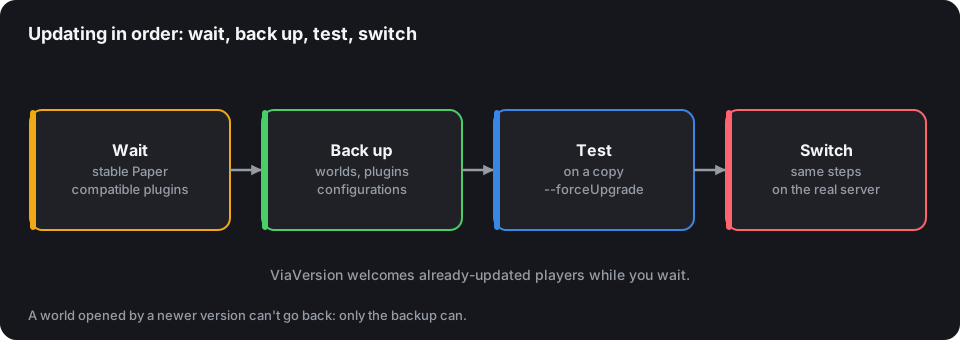
The rule that changes everything: there's no going back
As soon as a world has been opened by a newer version, it's converted: older versions can no longer read it, or read it wrongly. There's no reliable way to "downgrade" a world.
Consequence: the only possible way back is the backup made just before. Without it, a failed update has to be lived with to the end.
Keep players waiting: ViaVersion
No need to update the server to welcome players who already have. ViaVersion lets newer clients connect to an older server; ViaBackwards does the opposite, to keep players who stayed on the old version once you've switched.
Install ViaVersion on release day: up-to-date players get in, and you gain the two or three weeks needed to prepare the real update. New blocks and items obviously aren't available until the server has changed version.
When to switch?
Three conditions, not one less:
- Paper publishes stable builds for the new version, not just experimental ones. In the first weeks, they're still fixing data loss.
- Each of your essential plugins has a compatible version. Make the list: protections, permissions, economy, votes. Just one missing, and the server starts without it.
- You have an evening ahead of you, and it's not the day before an event.
For modded servers, the rule is simpler: you don't change the game version mid-season. You wait for the next season and a new pack.
The procedure
- Announce the date on Discord, a week before. Players accept a planned outage, not a surprise.
- Back up everything: the worlds,
plugins/, the configuration files. With the server stopped, for a consistent copy. - Test on a copy. Same machine, another folder, another port: unzip the backup, put the new version of Paper and the plugins in, start, connect, walk around the spawn and the shops.
- Read the logs of that first startup: every plugin that doesn't load is named there.
- Switch the real server by repeating exactly the same steps.
Convert the world in advance
By default, each chunk is converted the first time a player loads it, which can cause lag for days. To convert everything at once, run the server once with the option:
java -Xms6G -Xmx6G -jar paper.jar --forceUpgrade nogui
On a large world, allow long minutes, sometimes hours. Do it on the test copy first, to know how much time to plan.
What breaks most often
- Datapacks and resource packs: each version changes their format. Check that an up-to-date version exists.
- Abandoned plugins: if it hasn't been updated for two game versions, it won't be any more. Look for a replacement before, not after.
- Redstone farms: mechanics sometimes change from one version to another. Warn your technical players.
- The Java version: a new game version may require a newer one. Check in the mapping table.
After the switch
Watch the server closely for a few days: a Spark profile at peak hours will tell you whether the new version moved the lag. Update the version shown on your listing, since players filter the ranking by version, and announce the update: it's something new, use it to bring back those who had left.